Inside a Matter (Features & Best Practice)
Last updated: February 23, 2026
Goal: review faster, see the right facts, inspect sources instantly, and export what you need—without wading through noise.
A) Orientation: what you’re looking at
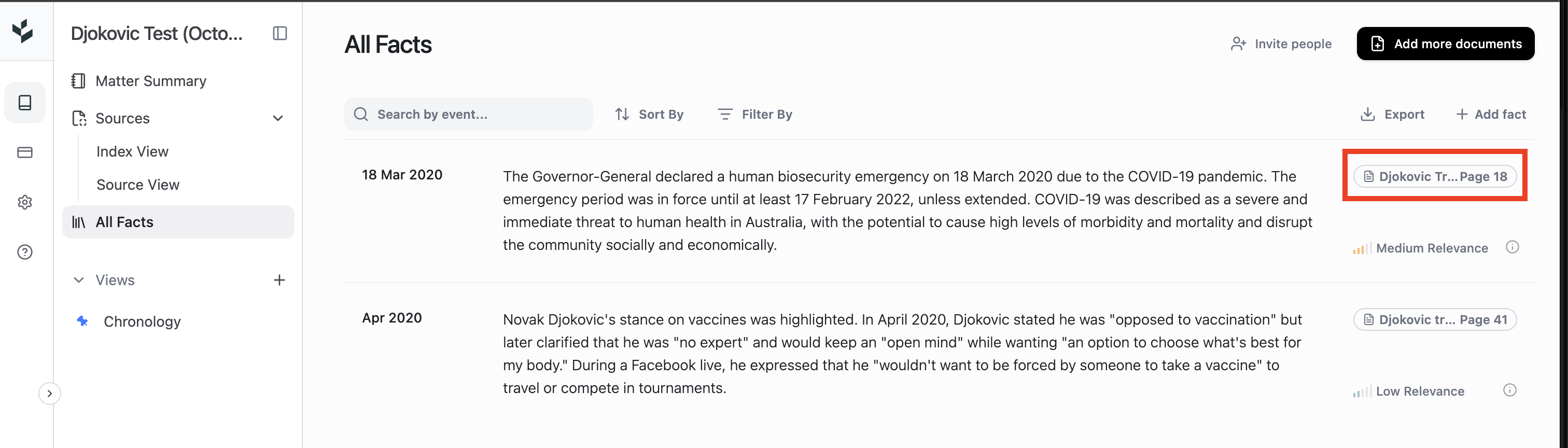
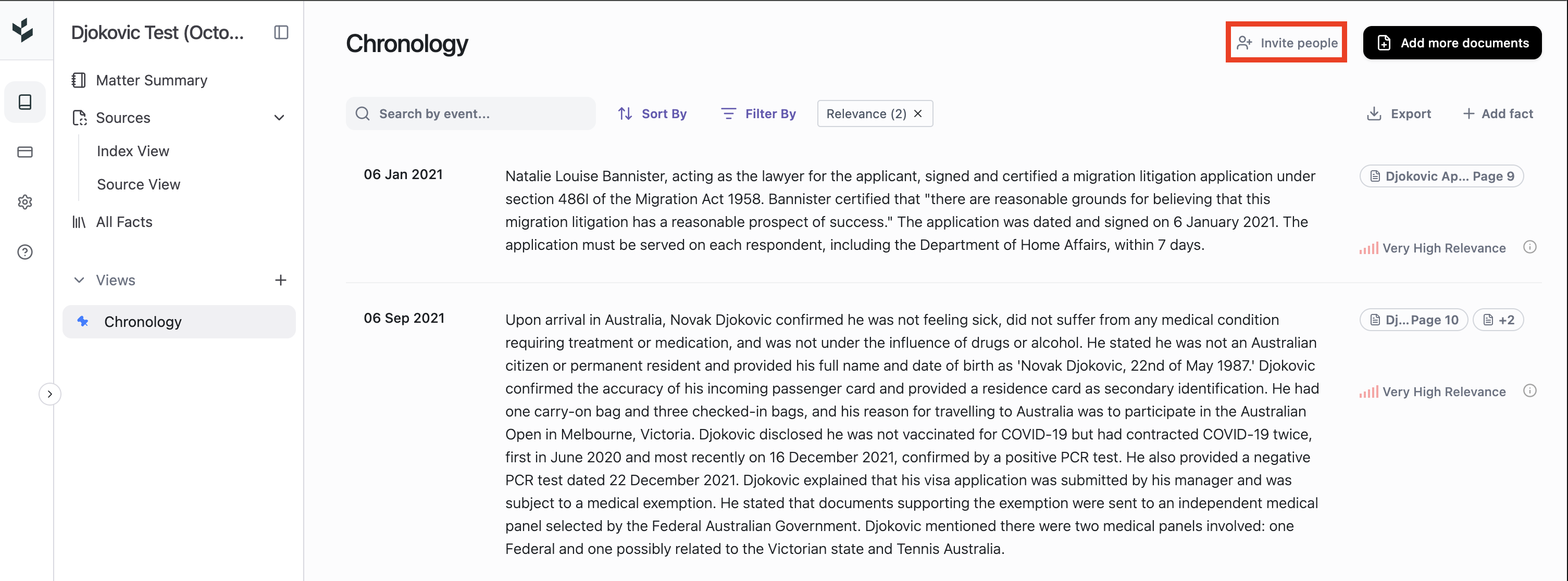
Each entry shows:
Date (and time if available)
The event summary (the extracted fact)
A link to the source file and the exact page
A Relevance Rating (Very high, High, …) driven by your Matter Summary
Theme tags that label the type of information (see Themes below)
Open the source instantly. Click the file/page icon (highlighted in red below) to open the PDF on the exact page.
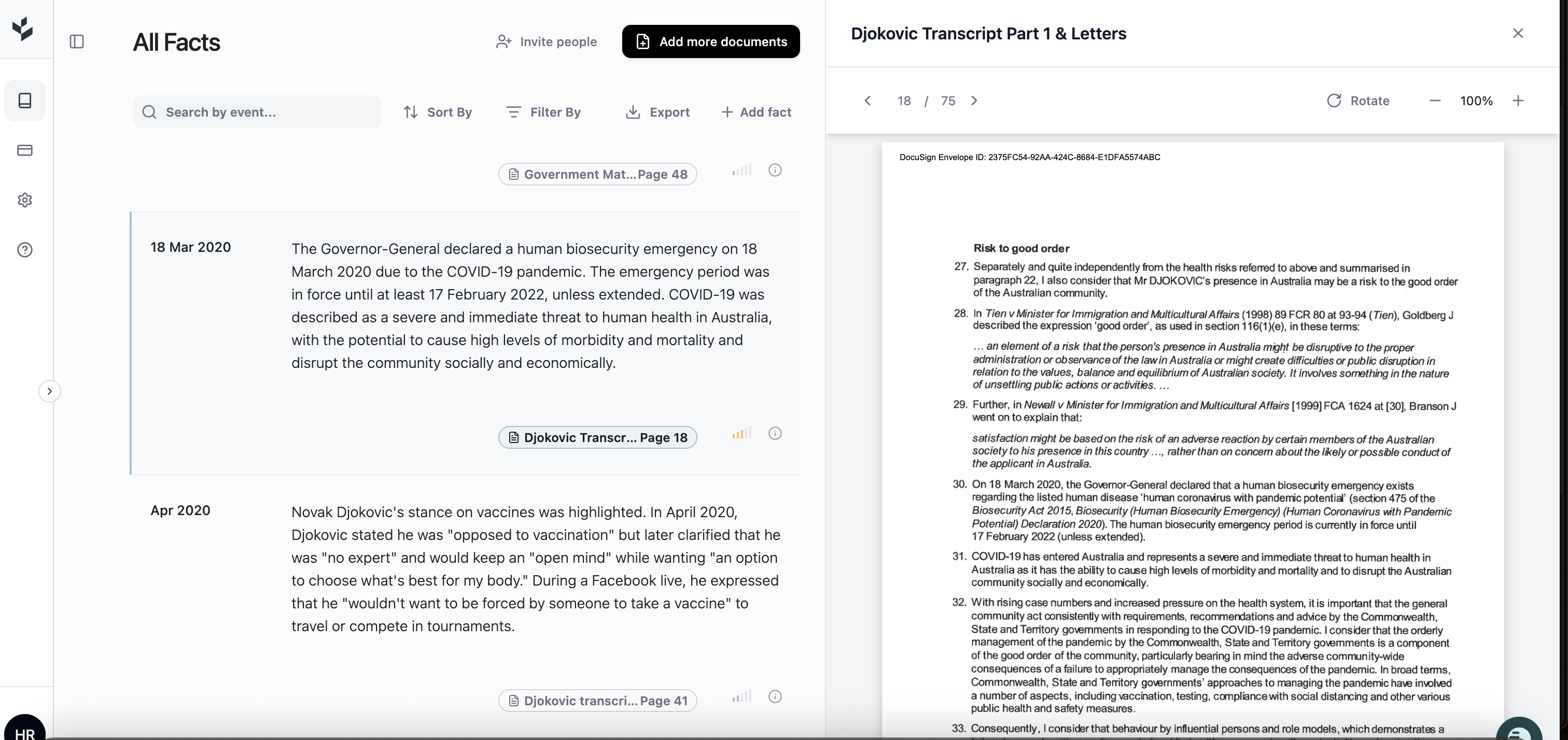
Use rotate for sideways scans and zoom for tiny multi‑page images.
Handwriting: Mary reads handwriting well. If a value is truly illegible, Mary notes that in the entry. Always sanity‑check sources for tricky numerals.
B) Chronology vs All facts views
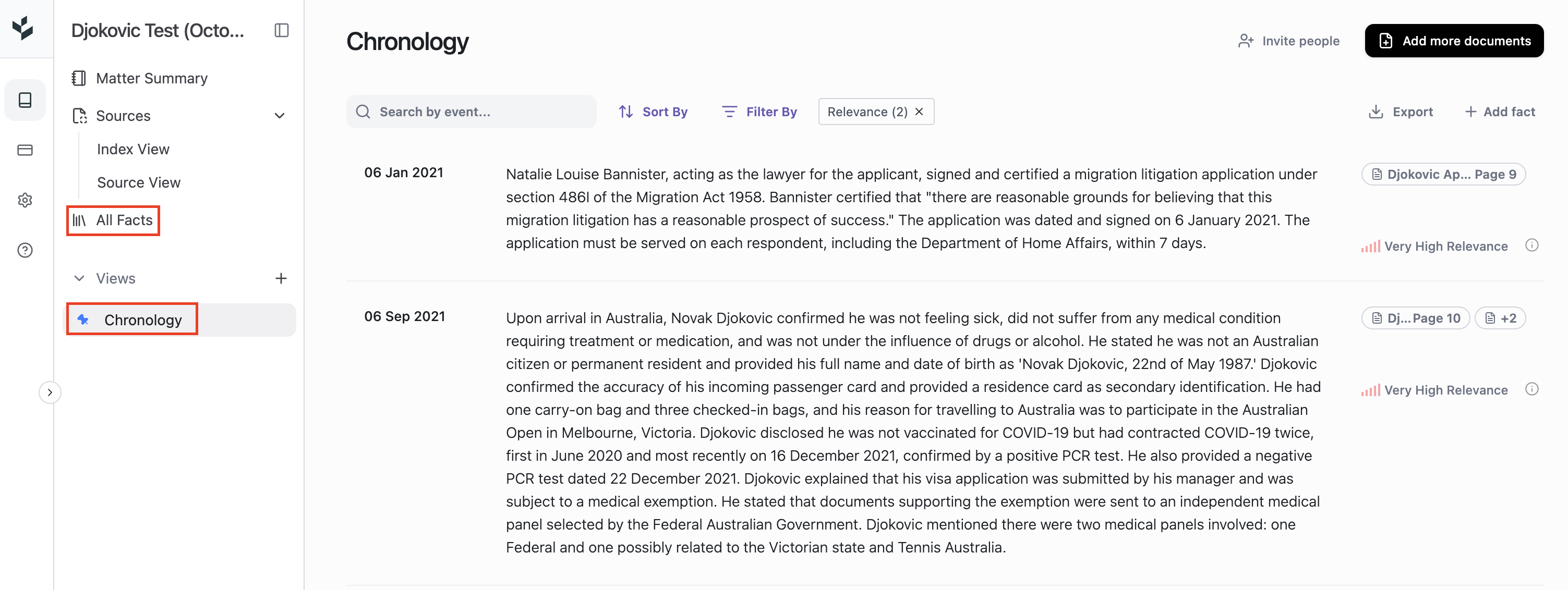
Chronology (default): only High and Very high relevance items—your high‑signal narrative.
All facts: everything extracted (comprehensive by design). Use when you truly need the long tail.
C) Matter Summary (the engine for relevance)
Open the Matter Summary tab. Drafted from your key document(s), it includes:
Overview
Key issues (this drives ~80% of relevance)
People & parties
Entities
Additional notes
Edit it (top‑right) to teach Mary exactly what is—and isn’t—important.
Recommended structure for Key issues (Write as if instructing an intelligent person who is about to review the documents):
The recommended structure uses two main headers:
Highly Relevant Information
List specific items you're looking for as dot points
Write as if instructing an intelligent person who is about to review the documents
Be explicit about what matters most to your case
Examples:
"Any type of information pertaining to a potential contract breach regarding X";
"Any communication between party A and party B";
"Instances of back pain or back injuries prior to the incident";
"Allegations or complaints of bullying of John Doe";
"Documentation around training that may have occurred with the worker involved"
Irrelevant Information (or "Low Relevance")
List what should be excluded or ignored
Helps Mary avoid flagging unimportant content
What happens next
After saving, Mary re‑grades relevance across all entries (quick).
Hover the small icon on any entry to see Mary’s grading rationale. If it seems off, clarify Key issues and re‑save.
D) Themes & Filters (and saving Views)
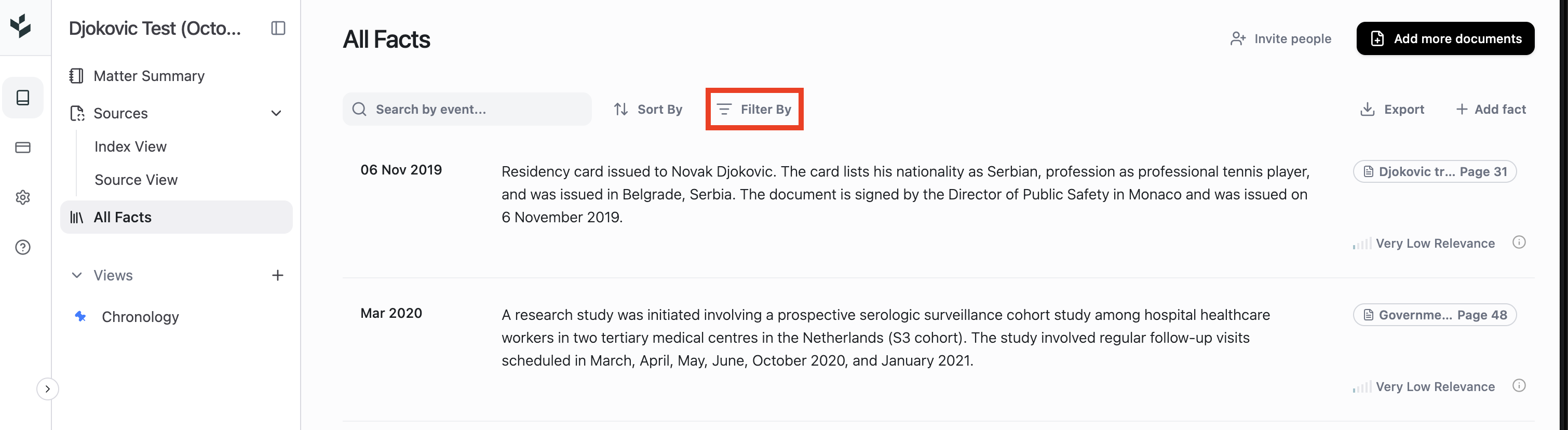
Filters let you show:
One or more Themes
Sources (e.g., only entries from a new tranche)
Relevance (e.g., only Very high)
Date range (e.g., “post‑transaction” or “pre‑event” windows)
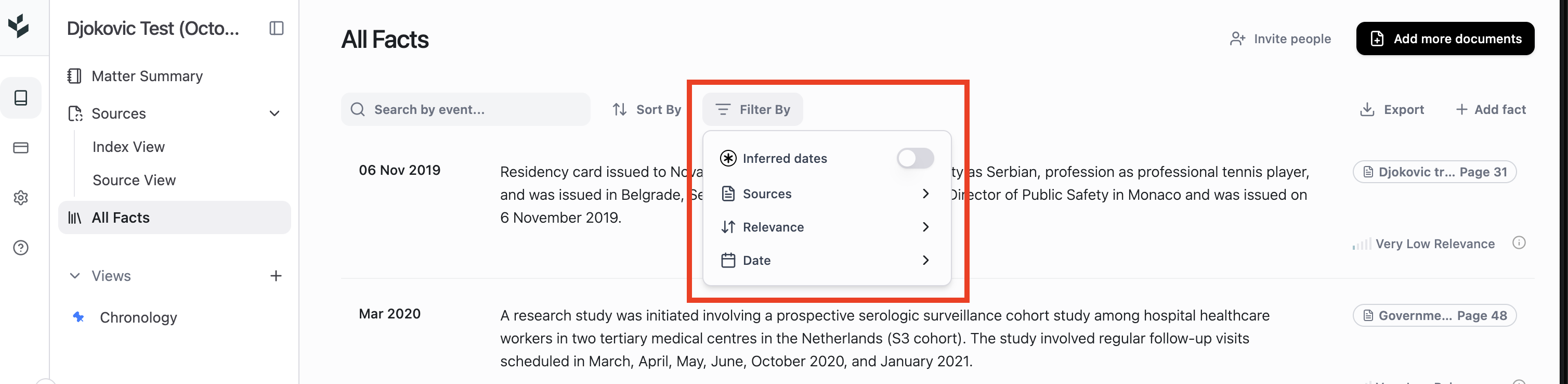
Themes help you flip lenses quickly.
Current default themes in Personal Injury (these appear today):
Personal background, Employment history, Incident, Medical, Consequences / Impact on life, Financial, Legal, Unassigned.Note: Default theme sets for other practice areas are coming. You’ll also be able to create your own custom themes.
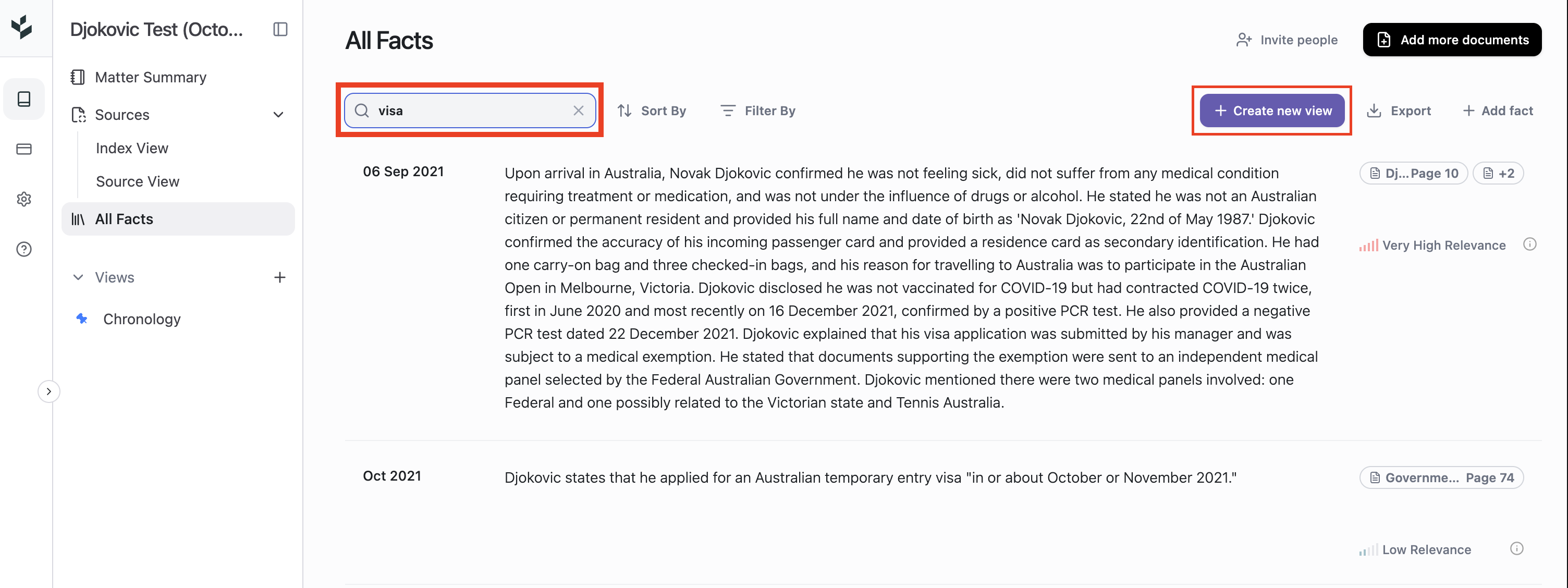
You can save any of these (or mixture of these) as a View: set filters → Create new view → name it (e.g., “New tranche only”, “Post‑event window”). Views live in the left sidebar for one‑click access.
E) Search (entries)
Today: keyword search (literal matches).
Saveable: you can save a search filter as a View.
Multiple terms: not yet; stacked terms are on the roadmap.
Semantic search: rolling out—type a concept (e.g., “notice” or “termination”) and Mary finds semantically related mentions, not just exact words.
F) Sources & Index (document‑level superpowers)
Switch from entries to Sources to see:
Source view: the files you uploaded.
Index view: Mary splits large bundles into component documents and labels each with:
Date (when available)
Name (e.g., “Operation report”, “Share sale agreement — execution copy”, “Email: Notice of default”)
Short description
Document type (e.g., medical record, contract, pleading, affidavit, file note, counsel letter)
Location (which PDF and the page range)
Relevance Rating
Common workflows
Find specific docs fast: search in Index (e.g., “termination notice”, “affidavit of Smith”, “operation report”), click, and the viewer opens on the exact page.
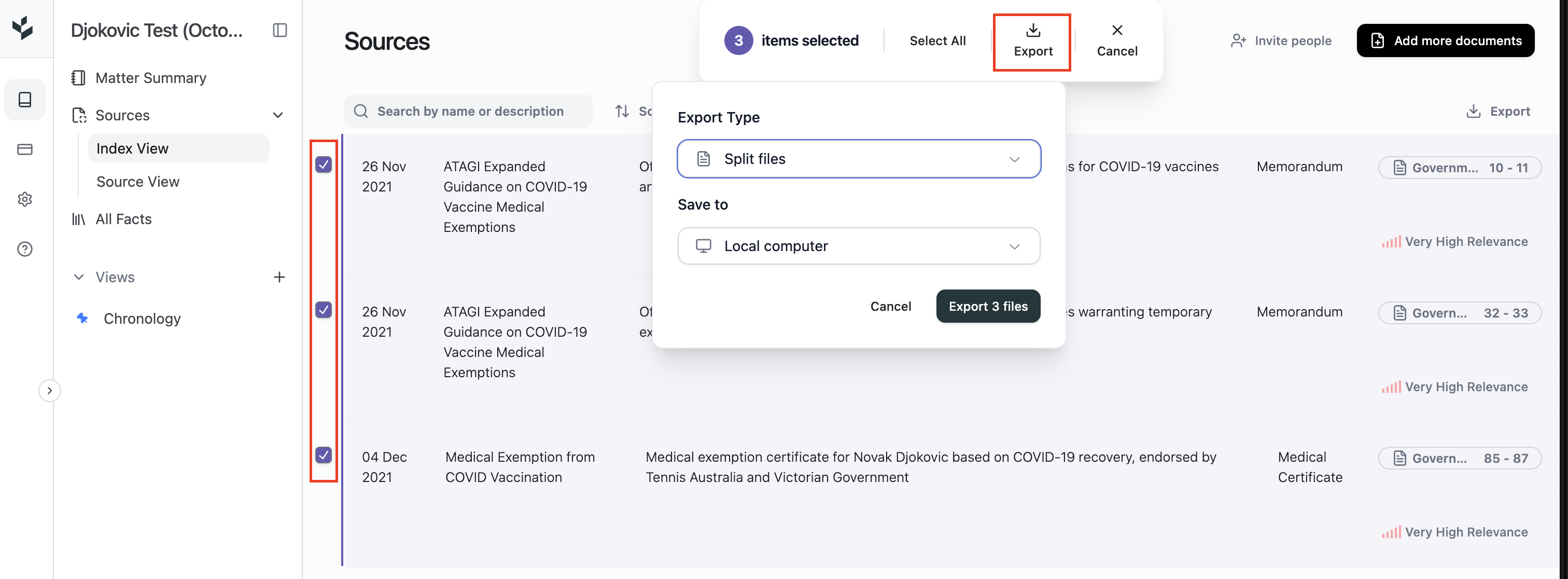
Export a pack: tick any set of documents (e.g., pleadings + core contract clauses + key emails) and click Export.
File index = a printable document chronology.
Split files = a ZIP of clean, renamed PDFs to drop into your DMS or send to counsel.
G) Add more documents later (and isolate the new stuff)
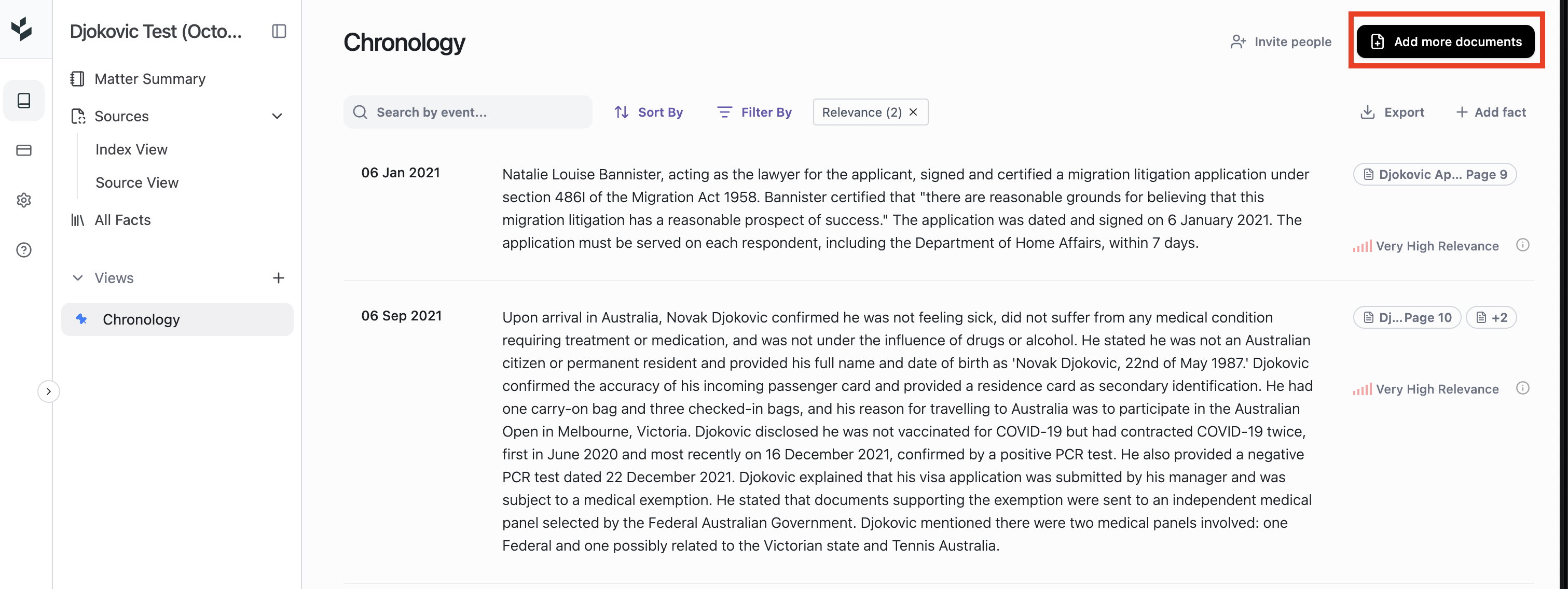
Click Add more documents (top‑right).
After processing, use Filters → Sources to select the new files/bundles and (optionally) save as a View (“Tranche 3 — new records”).
H) Sharing & collaboration
Click Invite people (top‑right) to add colleagues from your org.
Note: You can only invite people who already have a Mary account.
The Home page shows who has access to each matter.
I) Support (real humans)
The green chat button → Start new chat goes straight to our team (typically me; if I’m in a meeting, a teammate will reply). Ask anything—workflows, “how should I do X,” etc.
Quick reference (limits, formats, toggles)
Per‑upload limits: up to 500 files, 10,000 pages total, 500 MB per file
File types (now): PDFs, email files (.eml & .msg)
File types (near future): full Microsoft Office (Word/PowerPoint)
Detailed vs Concise: choose at creation; cannot toggle yet (in‑matter toggle coming)
Relevance engine: Key document(s) → Matter Summary → Key issues
Chronology: only High/Very high relevance; All facts shows everything
Index export: choose File index (list) or Split files (zipped PDFs)
Best‑practice checklist (my personal tips)
Always select key documents (instructions, pleadings, core instruments, briefs).
Edit Key issues before you dive in:
Add a short list of Highly relevant targets (what to surface)
(Optionally) list Irrelevant content (what to hide)
Work from Chronology; drop to All facts only for the long tail.
Use Themes and Views to jump between lenses (Incident/Medical/Impact today; other default theme sets are coming, and you’ll be able to create custom themes).
Hover rationale on a relevance badge if a grade surprises you; refine Key issues and re‑save.
Use Index to find/export the exact documents you need (contracts, pleadings, reports, emails).
Add documents anytime; make a “New tranche only” View to triage fresh material.
Open sources side‑by‑side; rotate/zoom as needed; always sanity‑check tricky scans/handwriting.
Roadmap call‑outs (heard in session; still accurate)
Toggle Detailed/Concise inside a matter
Semantic search (and multi‑term queries)
Custom themes (create your own; Mary back‑tags entries)
More integrations (e.g., picker‑style access to DMS/PMS)
Full Microsoft Office ingestion (Word/PowerPoint)
Appendix — Example Key‑issues templates you can paste & tweak
Generic template
Highly relevant information
Any references to [core element or issue] (and closely related terms) across all documents
All factual accounts of the event/transaction from parties/witnesses
Any communications showing knowledge/notice/authority/consent prior to the event/transaction
Materials that go to liability/merits, causation, quantum/remedy, or jurisdiction/procedure (as applicable)
Irrelevant information
Administrative items not bearing on the above issues
Records before [YYYY‑MM‑DD] unless directly tied to disputed issues
Duplicates and routine materials not probative of the dispute
Context‑specific examples (optional)
Personal Injury: prior complaints of the same body part/condition; witness statements of the incident; imaging/operation reports tied to the injury; functional restrictions/work impact
Commercial/Contract: executed agreement & amendments; notices of breach/termination; board/authority materials; payment/performance records; side letters; without‑prejudice handling per protocol
Employment: policies; performance/disciplinary communications; grievances; fit‑for‑work/medical material where legally appropriate; decision‑maker notes
Criminal: charge materials; witness statements; CCTV/transcripts; forensics; alibi/phone/site data; procedural compliance
Family: parenting plans/orders; financial statements/disclosures; valuations; family reports; communications about care arrangements