Understanding the Document Index
Last updated: February 23, 2026
What it is
The Document Index is Mary’s way of taking a huge, messy PDF bundle and turning it into something you can actually work with.
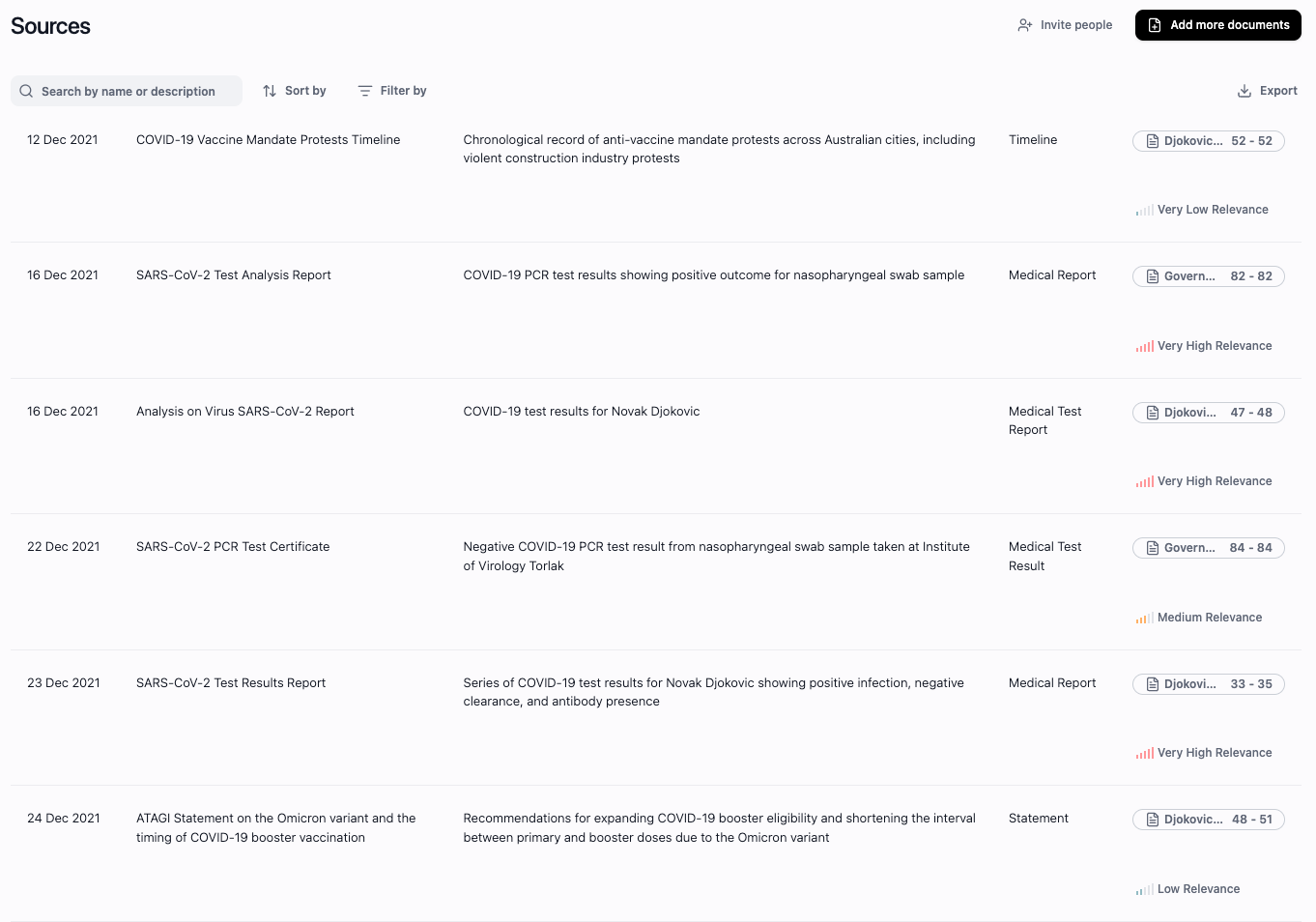
Mary automatically splits, categorises, and summarises large bundles of evidence (up to 10,000 pages) into a clean, searchable table. Each sub-document gets a clear name, a short description, a relevance rating, document type classification and accurate page references. You can then filter, review, and export exactly what you need, without trawling through every page yourself.
Why it matters
Most firms spend a frustrating amount of time just getting a brief into a usable state:
Renaming files
Splitting PDFs
Sorting medical from non-medical
Figuring out what’s relevant and what’s noise
None of that is really “legal work”, but it’s often what eats the first few hours (or days) of a new matter.
The Document Index is designed to take that load off your team so you can move faster on the things that actually matter:
Quickly see what’s in a bundle, without opening every document
Separate relevant material from background and duplication
Rely on accurate page references when preparing briefs and advices
Get earlier insight into liability, quantum, and gaps in the evidence
Where to find the Document Index
When you open a matter in Mary, head to the ‘Index view’ on the right hand side. Within it you will see each sub-document that Mary has extracted from your uploaded bundle(s).
How it works
1. Upload
Upload any large PDF bundle. To clarify, You don’t need to split the file beforehand, Mary will handle that for you!
2. Auto-split and classify
Mary automatically:
Splits the big bundle into logical sub-documents
Classifies each document into a type, for example:
Medical → Discharge Summary, Clinical Notes, Radiology Report
Court Documents → Affidavit, Statement of Claim, Orders
3. Summarise and tag
For each sub-document, Mary generates:
Name - a human-readable label informed by document type and content
Description - a short summary of what the document is about
Document type - a category (e.g. Medical, Court Document, letter) that makes filtering and organising your index easier
Page range - the exact pages in the original bundle where the document appears
Relevance rating - how relevant the document is to the matter (e.g. Very High, High, Moderate, Low, Irrelevant)
Source file reference - a deep link back to the original PDF for quick verification
The goal is that, just by scanning the table, you can understand what’s in your bundle and where the value is.
4. Review and filter
You can then use filters to quickly narrow down to the documents you actually care about. Common filters include:
Relevance
e.g. only show Very High and High relevance documents when preparing for conference or trial
Document type
e.g. only show Medical documents if you’re prepping for an expert report or liability advice
Date
useful for focusing on a particular period (e.g. pre-accident medical or post-incident treatment)
Source file
if you’ve uploaded multiple bundles, you can restrict the view to one or more source files
You can combine filters to get a tight, curated set of documents ready for export., for example:
Relevance = Very High / High
AND Document Type = Medical
5. Export
Once you’ve filtered the view to what you need, you can export in two ways. Both exports respect whatever filters you’ve set in the table.
Option 1: Export as a Document Index (.docx)
Produces a Word (.docx) document
The content is presented in a table, with columns similar to what you see in Mary (Name, Type, Description, Relevance, Page Range, Source, etc.)
This is ideal when:
You want to include an index in a brief
You’re serving a schedule of documents to the other side
You want a shareable reference for counsel or another team member
Option 2: Export as separate PDFs
Exports each sub-document as its own PDF
Only the sub-documents currently visible under your filters are exported
This is particularly useful when:
You want to push curated documents back into your DMS
You need a clean folder of, say, all relevant medical reports
You’re preparing a tight pack of evidence for counsel or an expert
A common pattern in personal Injury is:
Filter to Document Type = Medical
Filter to Relevance = Very High / High
Export as separate PDFs
Save those PDFs back into your matter workspace, DMS or local folders
6. Incremental updates
Matters rarely arrive in one neat bundle. When more material comes in:
Upload additional bundles into the same matter
Mary will:
Split and classify those new documents
Add them to the existing Document Index
Avoid reprocessing or disturbing what’s already there
This allows the index to grow with the matter.
Use cases
Here are some concrete ways we see our uses using the Document Index:
Initial triage of a new matter
Get a quick sense of what’s in the file, what’s missing, and where the key documents sit—before you start deep review.
Preparing a brief for counsel
Filter to Very High and High relevance documents, export a .docx index for the brief, and/or export the filtered documents as separate PDFs for a clean brief folder.
Medical evidence pack
Filter to Medical documents and then by relevance. Export as separate PDFs and drop them straight into your DMS or send to an expert.
Ongoing disclosure / further material
When new material comes in, upload the latest bundle, then filter by source file or date to see just the new documents and decide what actually matters.
Occupational disease or long-running matters
Use filters (type, date, relevance) to quickly find progress notes, key radiology, or particular treating specialists across very large files.
Tips and notes
Think of the Document Index as your staging area before anything flows into a chronology, statement, or advice.
Filters are your friend: whatever is visible in the table is what will be exported. Set your filters first, then export.
The descriptions are designed to convey the essence of the document at a glance—enough to know whether it’s worth opening.
Deep links back to the original bundle mean you can verify context in a couple of clicks, without scrolling blindly through 3,000 pages.
Even if your team still prefers some manual curation, starting from a generated index with page ranges is usually a big step up from a raw PDF.
Known limitations
At the current stage:
Mary does not automatically detect or merge duplicate sub-documents yet. You may still see repeated documents where, for example, the same discharge summary appears in multiple bundles.
You can’t yet manually edit sub-document names or page ranges inside Mary. Any adjustments need to be noted externally (e.g. in the exported index or your DMS).
Please note: if any of these are affecting you, reach out to Luke, our Head of Product (luke@marytechnology.com).
What’s coming next
We’re actively iterating on Document Index based on feedback from partners, solicitors, and paralegals using it in live matters. On our roadmap:
Grouped view - sub-documents visually grouped under their original source file for easier navigation
Duplicate detection - automatically flagging repeated documents so you don’t review the same thing twice
Editable names and page ranges - allowing you to tweak sub-document boundaries and labels to match your firm’s conventions
Custom document types - aligning Mary’s document categories more closely with how your DMS is structured
Smarter export options - Automatically saving the split documents back into organised files on your DMS.
Feedback and support
If you’d like to suggest improvements, report something that doesn’t look right, or talk through how your firm could best use the Document Index:
Email us at support@marytechnology.com, or
Reach out to Luke directly at luke@marytechnology.com
We’re always happy to see real examples and work with you to make Mary fit the way your team actually practises.