Draft a document
Last updated: September 24, 2026
Create a working draft from the documents in your matter, using an existing template or your own instructions. Start with processed sources, then check and edit the result before downloading it.
Start drafting
Open the matter and select Mary tools → Draft documents.
Choose an existing template, or Draft without a template.
Describe the document you need. Include its purpose and any important files or dates.
Answer Mary's clarification questions. Choose an answer or use Describe your own, where offered, then select Continue. Review the proposed plan before proceeding.
When the draft is complete, select Open in workspace on the Draft document result card.
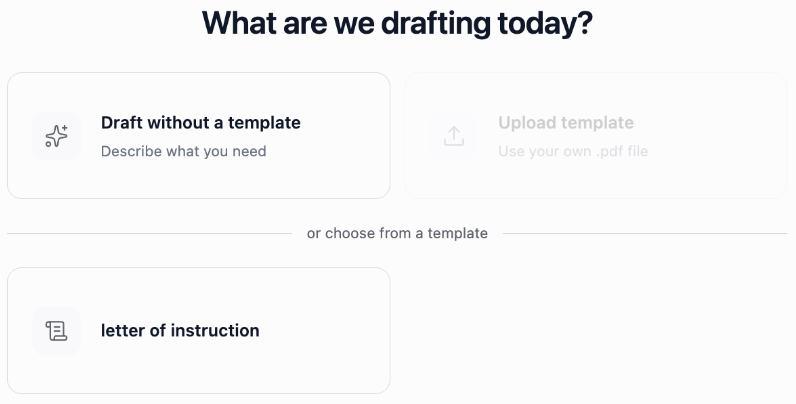
Select a template for the document you need, or choose Draft without a template.
If you need a new firm template, an organisation admin can create a drafting template. Once setup is complete, it appears here under Mary tools → Draft documents.
Describe what you need
A short instruction is enough to start:
Draft a factual summary of the design-approval dispute.
Add detail when it helps define the result:
Use the correspondence from 3 to 17 March 2026. Include the sequence of events, each party's position and unanswered factual questions. Keep any conditions attached to approval and cite the supporting documents.
For a longer outline, specify the audience and headings. The team's Draft a case outline: personal injury example and Draft a letter of advice: personal injury example offer structures to adapt.
Check and edit the draft
Read the draft for the intended purpose. Check important names, dates, amounts and quotations against the numbered citations. Look for omitted conditions, two events combined into one, or an allegation presented as an agreed fact.
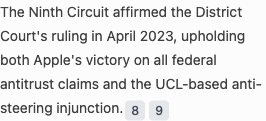
Select a numbered citation to open the document behind a statement.
Click an editable section and make your changes. They save automatically and sync with other people working on the matter. Recheck statements and citations affected by an edit. Drafts do not use the entry-verification workflow described in Review and verify entries.
If you need to investigate a factual point further, ask Mary about the relevant source documents, then return to the draft to make any changes.
Download the draft
Choose whether Include citations is on or off.
Select Download .docx.
Open the Word file and check the text, headings, tables and references you intend to share.
An exported file is a separate copy. Review a fresh export after changing the draft, and check that a recipient can access any linked supporting material they need. Find and export your work covers returning to saved work and final file checks.