Find and export your work
Last updated: September 24, 2026
Find the completed result you need, check the documents and dates it covers, then download a version for review or sharing. An exported file is a separate copy: later changes in Mary do not update it.
Find a completed result
Open the correct matter and select My workspaces.
Check the result's name, type and completion status.
Open the chronology, draft or bank analysis you need.
You can also return through Chats. Open the original conversation, check its question and select Open in workspace on the completed result card.

Use Open in workspace to return from a conversation to its completed chronology.
Check the issue, people and dates before opening one of several similarly named results. If you cannot find it, follow help with missing work.
Choose an export format
For a chronology or financial table, select Export and choose an available format, such as Word, PDF or Excel/XLS. Document drafts use Download .docx, as described below. Available formats depend on the type of work and the options shown.
Use Word when you need to continue editing a document, PDF for a fixed-layout copy, or Excel for further table work when offered. Check the content and destination before downloading.
Export a chronology to Word
Open the chronology's Workspace tab.
Review the active keyword search and column filters. These affect the entries included in the export.
Select Export. For a Word file on your device, choose Word (.docx) and Local computer where these options are available.
Check the entry scope, complete the export, then open the downloaded file.
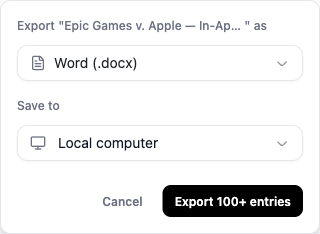
This menu shows a Word export to Local computer. An abbreviated count such as 100+ is not the exact number of rows in the downloaded file.
Check the dates, entries, table layout and source references in the file. Renamed table columns carry through to supported Word and spreadsheet exports; inspect the headings too.
Export a draft or bank analysis
Work | What to check before downloading |
|---|---|
Document draft | Review the intended text. Choose whether Include citations is on or off, then select Download .docx. |
Bank analysis | Open Export and check Export content. All Categories may include more than the category currently visible in the table. |
Follow draft a document or analyse bank statements for the relevant source and content checks. Formats and selection controls can differ by result.
Choose original documents or prepared work
Download a source when you need the original document. Export a chronology or draft when you need the work prepared in Mary. In a source viewer, use the download control where available and check the filename and version. See source review.
Local computer saves a file to your device. To send work to a connected document-management system, check that your connection supports the work and destination you need. Connected tools explains the provider differences.
Check the file before sharing
Open the downloaded file and check:
The correct matter, issue, people and dates are covered.
The expected entries or text are present, with unresolved questions still clear.
Headings, tables, dates and amounts are readable and correct.
Important source references identify the supporting material.
A downloaded file does not grant access to a Mary matter. If a recipient needs to follow a Mary link, confirm they have the required access. Include the source information needed for the intended use.
Give the file a clear matter, subject and date or version. After a material change, review a fresh export and decide whether earlier recipients need a replacement. For entry decisions, use Review and verify entries. Chronology-specific updates are covered in Create and edit a chronology.