Find and review source documents
Last updated: September 24, 2026
Start inside the matter you want to review. Use Sources to check its original files and Document index to find the individual documents within them. You should finish with the original document open at the passage you need.
A source is an uploaded file. An index entry describes a document within that file. A citation links a statement in Mary to supporting source material.
Choose the right view
View | Use it to |
|---|---|
Sources | Check original files, folder locations and processing status. |
Document index | Find organised entries with document dates, names, summaries, types and source page ranges. |
A cited source | Read the passage supporting an answer, chronology entry or draft. |
An uploaded bundle can contain several documents. For example, a PDF containing a letter, an agreement and an invoice could have three index entries. The file count and index-entry count can therefore differ.
Check the file status first
Open Sources and locate the original filename and folder. Done means processing has completed; Ready means the file has not finished processing. Check the status of the files you need.
If they are unfinished or have warnings, follow upload troubleshooting. A processed file is available for work in Mary, but may not be relevant to every question or chronology.
Find an index entry
Open Document index in the matter.
Use Sort by or Filter by to narrow the entries.
Read the organised name, date and summary.
Check the original source and page range, then open the source reference.
For example, the index entry “2015.06.08 - Apple Developer Agreement (Court Exhibit 41-16)” points to pages 2–7 of entry-41_Exhibit_P.pdf.
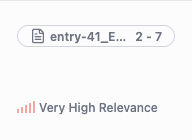
Open the reference to check the original file and its pages 2–7.
If you cannot find a document, check Sources for its original location, status and any skipped or rejected files. Follow upload troubleshooting for intake problems.
Read a citation in context
Select the source reference beside the statement you are checking. Compare the source's author, date and surrounding wording with the result.
For example, a March 2008 chronology entry in Apple v Epic - AU Demo links to Answer to Claim (1).pdf, viewer page 15. Paragraph 42 discusses the software development kit. The printed document page is 13: viewer and printed page numbers can differ.
Check the full passage rather than a page number alone. An allegation, a recorded admission and a later recollection have different meanings.
Review emails, spreadsheets and bundles
For EML or MSG email material, check the sender, recipients, date, earlier thread messages and related attachments. Open an attachment itself when its contents matter.
For folders and ZIP archives, use the retained folder path to identify the received location. Files with the same name may occupy different folders.
For a Word document, review supported tracked changes and comments when they affect the passage. A proposed wording change may have a different meaning from the final text. Compare important wording with the original document.
Native-format viewing is available in newly created matters. Older matters use the PDF-based viewer, including for newly added files; the new upload formats and limits still apply. See supported files and upload limits.
Follow a spreadsheet citation
In a new matter's native spreadsheet viewer:
Select a numbered source reference in the answer, or open Cited sources and choose the reference.
Check the workbook name and Cited range in the viewer.
Read the highlighted cells, their column headings and the surrounding values. Compare important content with the original workbook too.
A cell is one box in the spreadsheet. A range such as Sheet1 · A1:H1 identifies the worksheet and the cells from column A to H in row 1. A2:H101 covers those columns across rows 2 to 101.

The references identify different ranges in the same worksheet.

The selected reference highlights the header range. “1 of 2” identifies the current reference, not the number of worksheets.
Check which range supports the statement: a header reference identifies the columns, while a data-range reference points to the records. For an older matter's PDF-based viewer, check the cited page and the original workbook instead.
Understand document naming conventions
If your firm has conventions enabled during onboarding, the convention chosen for a matter helps Mary classify and name documents in its index. Firms without this feature enabled will not see the Conventions setup step. Follow use document naming conventions to choose an existing set or discuss your firm's needs with Mary.
The original folder path records where a source came from. The generated index name describes a document within it; those names and locations serve different purposes.
Check names, dates and page ranges
Compare the index entry with the original file. Check the document's name and date, then confirm that the entry covers its correct start and end pages. A document date can differ from the date of an event described inside it.
If a name or page range needs correction and you cannot identify the appropriate control, contact your Mary administrator or Mary support with the entry name, original filename and page range. An index entry, the uploaded source and a copy in another system are different items.
Use Ask Mary when the task is to compare what several sources show. Before distributing material, follow find and export your work.