Import documents from connected tools
Last updated: September 24, 2026
Bring files into a Mary matter from a cloud storage or document-management system your organisation has connected. Before selecting documents, check the source account and the Mary matter that will receive them.
Import from Google Drive or OneDrive
Where the connection is enabled for your organisation:
Open the intended matter and select + Add files.
Choose Google Drive or OneDrive.
Complete the provider's sign-in or authorisation if prompted.
Select the files you want to import.
Review the selected files in Mary and resolve Needs Attention warnings.
Select Process when the selection is ready.
Check the files in Sources afterwards. Make sure the imported documents finish processing before using them. The upload guide covers the current upload screens and warnings.
Find documents in another connected system
From the matter, select + Add files to open the source menu. It also lists iManage, NetDocuments, Smokeball and Actionstep. If your organisation has already connected the system, choose it from the source menu and check the location containing the documents you need.
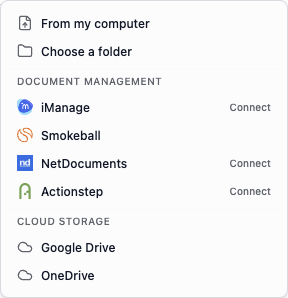
The systems listed here may need to be connected or enabled for your organisation.
iManage
Sign in with your own iManage account when prompted. Use its file picker to select documents or emails in the intended workspace and folder. Your iManage permissions determine which files you can select.
NetDocuments
Sign in inside the NetDocuments selection window. Check the cabinet and document location. Your NetDocuments permissions determine which documents you can select.
Smokeball
Find the relevant matter, then browse its folders and subfolders to select files.
Actionstep
Find the relevant matter's document folders. Information in a separate Actionstep data panel may not be among the files you select.
If setup is needed
If the connection is marked Connect, or you have not used the setup before, ask your organisation's administrator or Mary support for the steps for your firm. Include the system name and Mary region. Setup, permissions and the types of material available can differ.
Confirm the intended files arrived
Check the source account and full folder or matter name, especially when locations have similar names. Access to files in another system and access to the destination Mary matter are separate.
In Mary, review the detected files and any skipped or rejected items. Compare the actual files selected with those received; a folder count alone does not tell you whether everything arrived. Follow supported files and upload limits and upload troubleshooting for problems.
If you need to upload a local copy instead, obtain the actual document through your firm's approved process. A shortcut or reference file may contain only a link.
Recognise connection status
The Integrations overview shows connection controls for iManage, Smokeball, NetDocuments and Actionstep. Connect is the entry point for a system that needs connecting. Connected identifies an established connection.
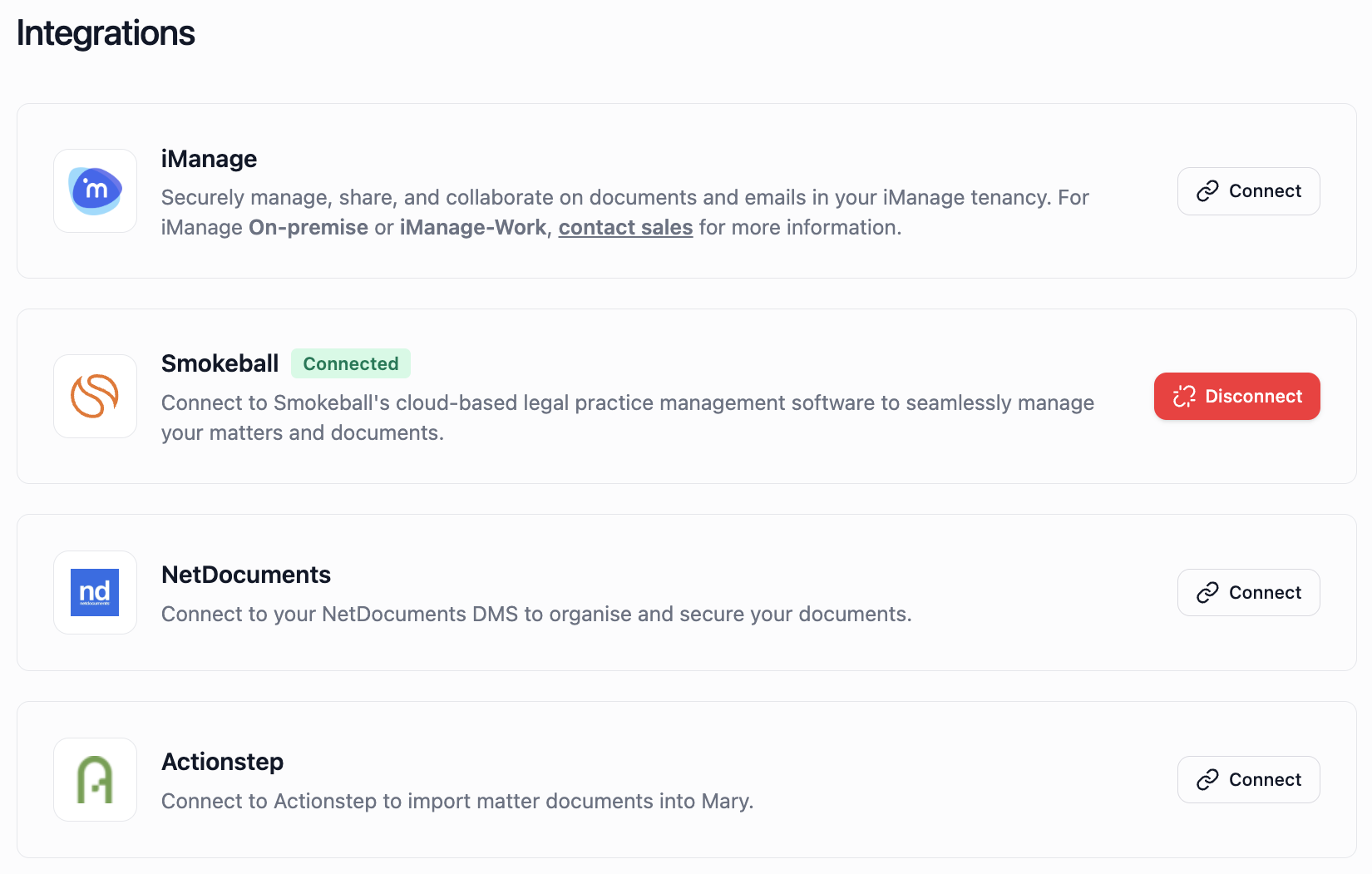
Check whether the provider you need shows Connect or Connected.
For iManage On-premise or iManage-Work, the overview directs you to contact sales for more information. For a new connection, follow your firm's setup process or ask your administrator or Mary support before selecting documents. For later changes and exports, check the guidance below.
Check later changes and exports separately
Check the version in Mary before relying on imported material. Do not assume that a later change in the connected system automatically updates the copy or work already in Mary.
To send work back to iManage, NetDocuments, Smokeball or Actionstep, confirm the supported type of work, destination and access with your administrator or Mary support. Import access alone does not establish export access. To download a file to your device, follow find and export your work.
Get help with a connection
Check the system, account, source location and any sign-in window waiting for input. For a missing option, use help with missing features.
If the problem continues, contact Mary support with the region, system name, stage and exact error. Enter credentials only in the provider's secure sign-in flow.