Upload and processing troubleshooting
Last updated: September 24, 2026
Check the stage and reason Mary shows before trying the upload again. This helps isolate the affected file and preserve work that has already completed.
Identify the affected file
Open the matter's Sources view. Note the filename, folder, status and exact message. In the new upload experience, use Needs Attention to inspect warnings or rejected files.
What you see | What to do |
|---|---|
Rejected or skipped file | Read the reason beside it. Check the format, size and readability against the upload limits. |
Ready | Processing is not confirmed complete. Check for pending processing or a warning; Ready is not Done. |
Interrupted upload | Check which files arrived and which remain pending. Use the displayed resume or retry action for the affected files. |
Processing appears stuck | Note the stage, start time and any error. Contact support if the problem persists. |
Expected file is missing | Check the matter, folder and skipped-file list. Find that file in the original upload and check whether it was received, skipped or rejected. |
Source is Done, but a finding is absent | Check the question's scope and the relevant source passage. Review the material used for that result. |
Tell upload progress from processing
Open Active uploads in the sidebar to see background upload progress while you work elsewhere. 100% means file transfer has finished. Processing is a separate stage: Ready is awaiting processing and Done is fully processed.
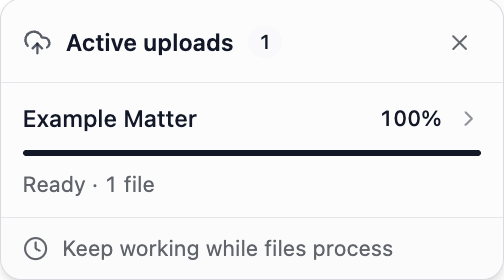
The upload is complete, but Ready does not confirm completed processing. Check Sources for the file status.
Continue advances the new-matter setup. Finish & Generate, or Process when adding files to an existing matter, starts processing. Credits are deducted after pages fully process. Follow matter setup or adding documents for the relevant route.
Resolve a rejected or skipped file
Check the reason Mary gives and open the original file outside Mary to confirm it is readable. Compare its actual format and size with supported files and upload limits. Renaming an extension does not convert the file.
For a password-protected or damaged file, obtain a readable copy through your firm's approved process. Keep the original. If Mary reports password protection but the original opens without a password, record the upload source and exact error for Mary support.
If Mary identifies a duplicate, check the folder and the displayed reason. Files with the same name in different folders may be different documents. Resolve the specific warning before renaming or re-uploading material.
Resume an interrupted upload
Mary can attempt to resume an upload after a temporary connection interruption. Return to Sources and check which files remain pending. Use the available action for those files, then inspect their final status.
Keep a record of any persistent error before leaving or refreshing the view. Repeating the entire batch can make it harder to distinguish the original upload from a second attempt.
For cloud imports, also check that the intended provider and source location were selected. See connected tools.
Investigate slow processing
Check whether the stage is changing and whether an error is shown. File size, content and the work being performed can affect processing; elapsed time or a percentage alone does not identify the cause.
If progress appears stuck or an error persists, contact Mary support with the matter reference, approximate start time, affected files and visible status. Keep the matter and completed material in place while the issue is investigated.
For an unexpected estimate or balance, see credits and usage.
A completed result is missing or incomplete
Confirm the correct matter and selected scope. A processed source may be available without contributing to every answer or workspace. Inspect the cited sources. For a supported chronology, check its Details and Used or Not used source explanations to understand why a document contributed or was excluded. These explanations concern that chronology; other results may have different controls.
For an available source that will not open, or work you cannot locate, use missing features and display issues.
When contacting support, include the upload source, file type and approximate size, exact error, time and what you tried. A focused screenshot of the status is useful; exclude credentials and unrelated client information.