Get started with Mary
Last updated: September 24, 2026
A matter brings together the documents, conversations and work for a case or project. Choose the path that matches where you are starting:
Your matter is already set up: open it, then ask your first question.
You are setting up a new matter: enter its details, add documents and finish setup.
Use your work account and your firm's Mary region. Sign in to Mary if you need the sign-in link.
Open an existing matter
Open Matters and choose the matter by its full name. If it is missing, ask for access. Once it opens, go to Find your way around, then ask your first question.
Set up a new matter
Check that your team does not already have a matter for this work. From Matters, select New Matter.
Enter the details
In Matter Details, enter a Matter name colleagues will recognise. Add your firm's number under Matter ID if useful; it is optional. Choose the Area of law, then select Continue.
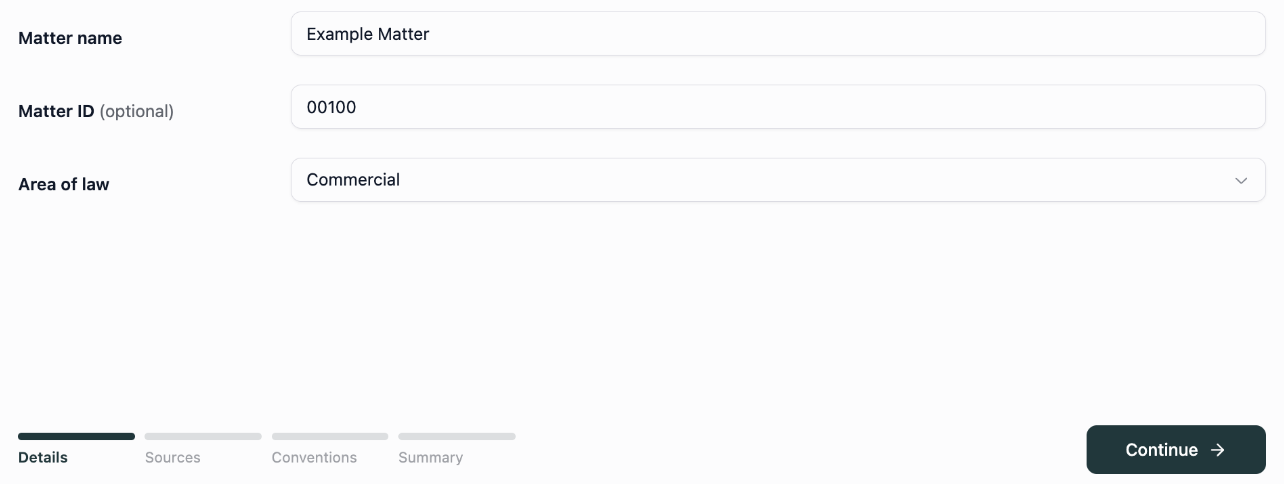
Give the matter a recognisable name and choose its area of law.
Add the documents
In Sources, drag in files or folders, or use Add files → From my computer or Choose a folder. For cloud options and the full upload procedure, follow adding documents.
Review the files and resolve Needs attention warnings, then select Continue. Check supported files and upload limits before a large upload.
Choose a convention, if your firm uses one
Firms with document naming conventions enabled see Conventions between Sources and Summary. Choose the appropriate Naming convention, review Document types in this set, then select Continue. Use document naming conventions explains the choice.
If your firm does not use conventions, this step will be absent. Continue to Summary. Your firm can ask Mary to enable conventions during onboarding.
Add context and finish setup
On Summary, use Key documents → Add documents to identify important material and enter useful Additional context. These optional fields help Mary summarise the matter and assess the relevance of facts.
For example:
This matter concerns a design-approval dispute. The contractor says approval was final; the client says it depended on a revised drawing. The relevant correspondence is from 3 to 17 March 2026.
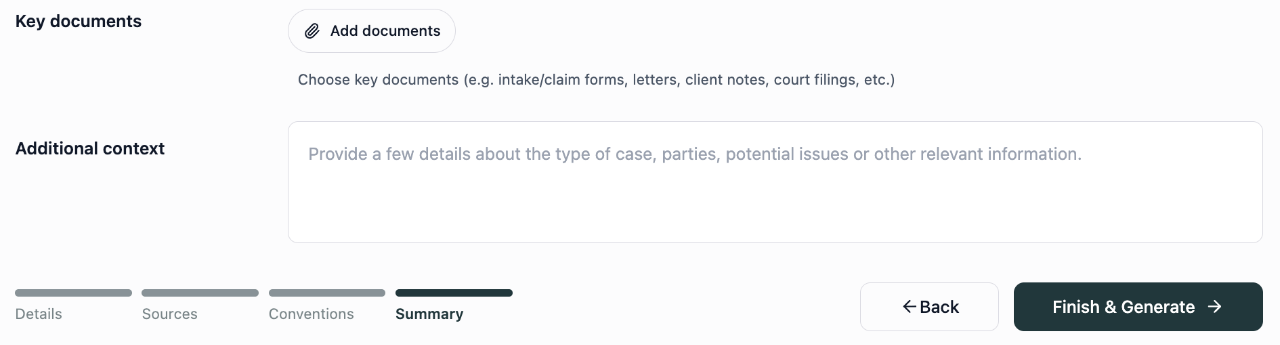
Use the Summary step to identify key documents and explain the issue.
Select Finish & Generate to start processing. Credits are deducted after pages fully process. Open Sources and check that the files you need show Done before using them. Ready means they have not finished processing; upload and processing troubleshooting explains the stages.
Find your way around
Place | What it is for |
|---|---|
Summary | The matter's summary and context, including key documents and additional context that help Mary assess relevance. |
Sources | Original uploaded files, their folders and processing status. |
Document index | The individual documents Mary identifies within those files, with names, dates and source references. A single bundle can contain several documents. |
Mary tools | Tasks such as asking questions, creating chronologies, drafting and analysing bank statements. Available tools can vary by matter. |
Chats | Conversations, including questions, answers and links to completed work. |
My workspaces | Saved work, such as a chronology or draft. A workspace is where you open and work with that result. |
A chronology is a timeline of events. A citation is a reference you can follow to the source supporting a statement.
Ask your first question
Check that the documents you need have finished processing in Sources.
Open Mary tools → Fact explorer to use Ask Mary.
Ask a short question about an issue you know. For example: “What did the contractor say about design approval?”
Read the answer and select a numbered citation to open the source. Compare the passage with the answer, including any conditions attached to the approval.
You can make the question more specific afterwards: “Focus on the contractor's email dated 17 March 2026. Was approval conditional on a revised drawing?” See Ask Mary about your documents for more examples.
Return to your work
Open the conversation in Chats to read the answer again. If it contains a completed work card, select Open in workspace. Completed work is also available under My workspaces.

Open in workspace takes you from the conversation to its completed result.
Choose your next task
I need to… | Guide |
|---|---|
Follow events over time | |
Check entries and record review decisions | |
Prepare a document | |
Examine transactions | |
Find previous work or download a copy |